> ## Documentation Index
> Fetch the complete documentation index at: https://itemstores.com/help/llms.txt
> Use this file to discover all available pages before exploring further.
# Set up a buy now pay later store
> Let customers place orders without paying, then bill them from the quote
A buy now pay later store takes orders without a card. Each checkout creates a
quote and an order at the same time, and you collect the money from the quote
whenever you are ready.
## 1. Turn it on for the store
Go to [Stores](https://itemstores.com/app/stores), open the store, and
select **Settings**. The **Participant settings** card sits beside the form.
Turn on **Buy now pay later**. A store uses either this or **Points system**,
so the other switch greys out.
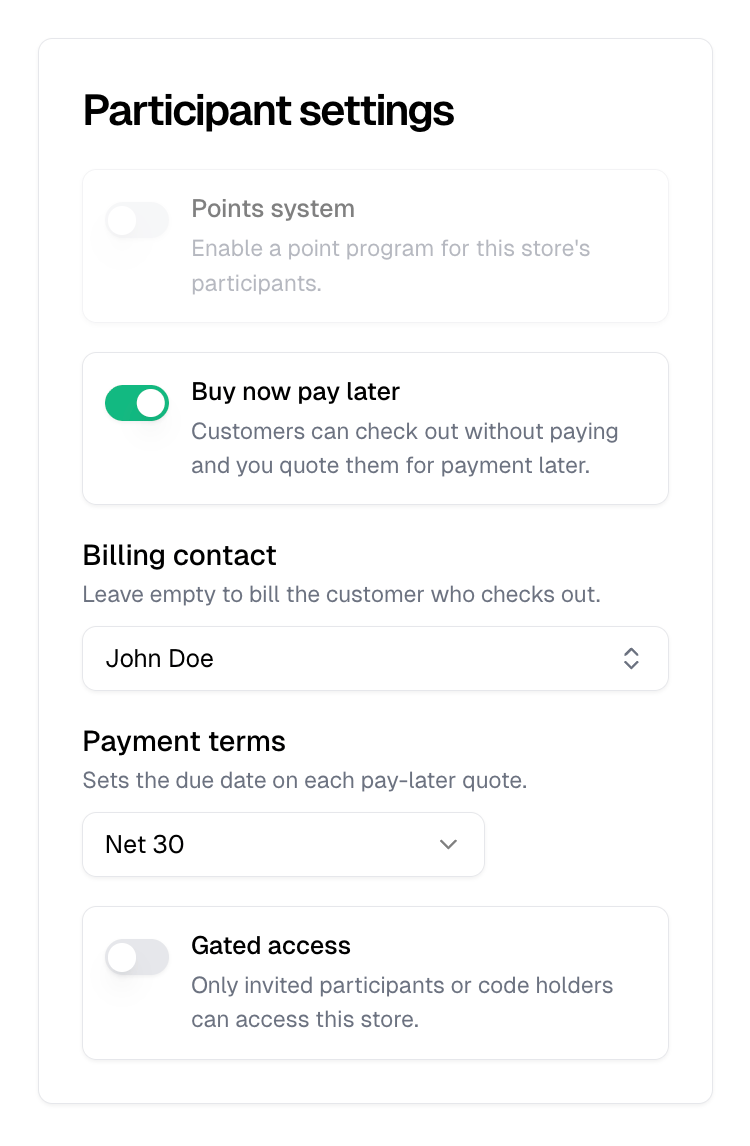 **Billing contact** is who receives every payment request from this store.
Leave it empty to bill whoever checks out. Pick a contact when one person
pays for everyone, such as an office manager ordering for staff or a team
dealer billing parents later.
**Payment terms** sets the due date on each pay-later quote: Due on receipt,
Net 15, Net 30, Net 45 or Net 60. **None** leaves the due date off.
Select **Update store**. The store's card and the stores list now carry a
**Buy now pay later** badge.
## 2. What the customer does
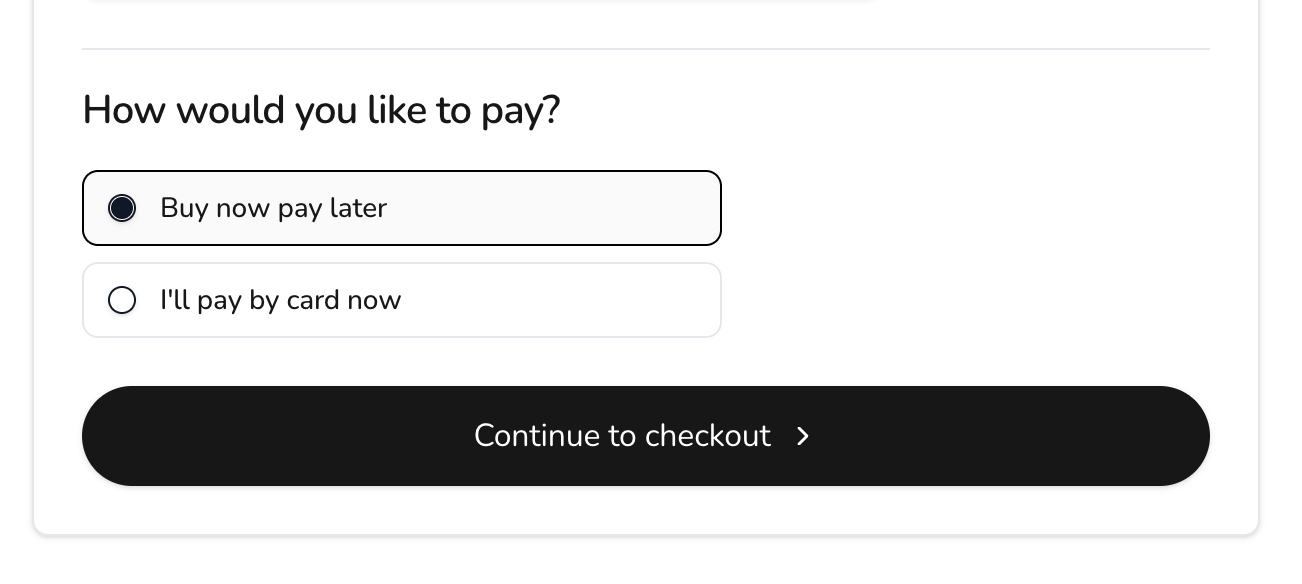
Checkout asks **How would you like to pay?** with two choices, **Buy now pay
later** and **I'll pay by card now**.
**Billing contact** is who receives every payment request from this store.
Leave it empty to bill whoever checks out. Pick a contact when one person
pays for everyone, such as an office manager ordering for staff or a team
dealer billing parents later.
**Payment terms** sets the due date on each pay-later quote: Due on receipt,
Net 15, Net 30, Net 45 or Net 60. **None** leaves the due date off.
Select **Update store**. The store's card and the stores list now carry a
**Buy now pay later** badge.
## 2. What the customer does
Checkout asks **How would you like to pay?** with two choices, **Buy now pay
later** and **I'll pay by card now**.
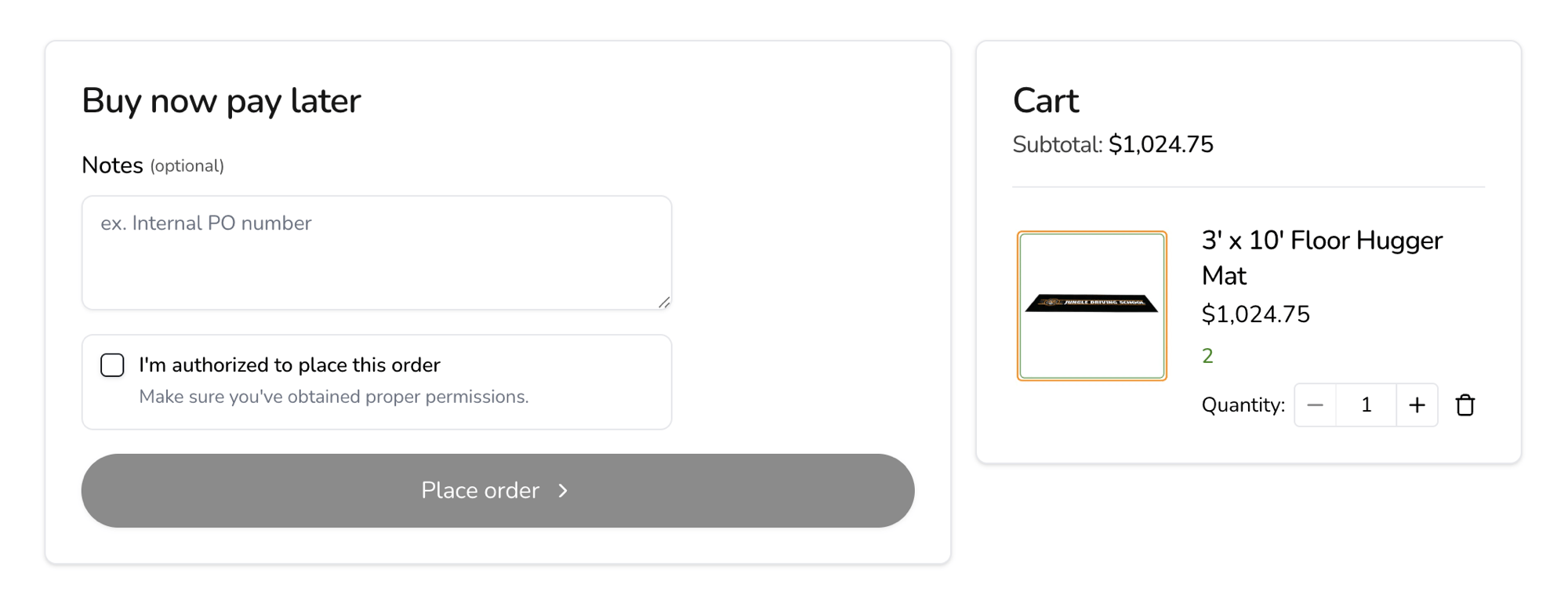
 Choosing to pay later leads to a short step with an optional **Notes** field,
for a purchase order number or anything you should see, and an
**I'm authorized to place this order** checkbox. **Place order** stays disabled
until it is checked.
Choosing to pay later leads to a short step with an optional **Notes** field,
for a purchase order number or anything you should see, and an
**I'm authorized to place this order** checkbox. **Place order** stays disabled
until it is checked.
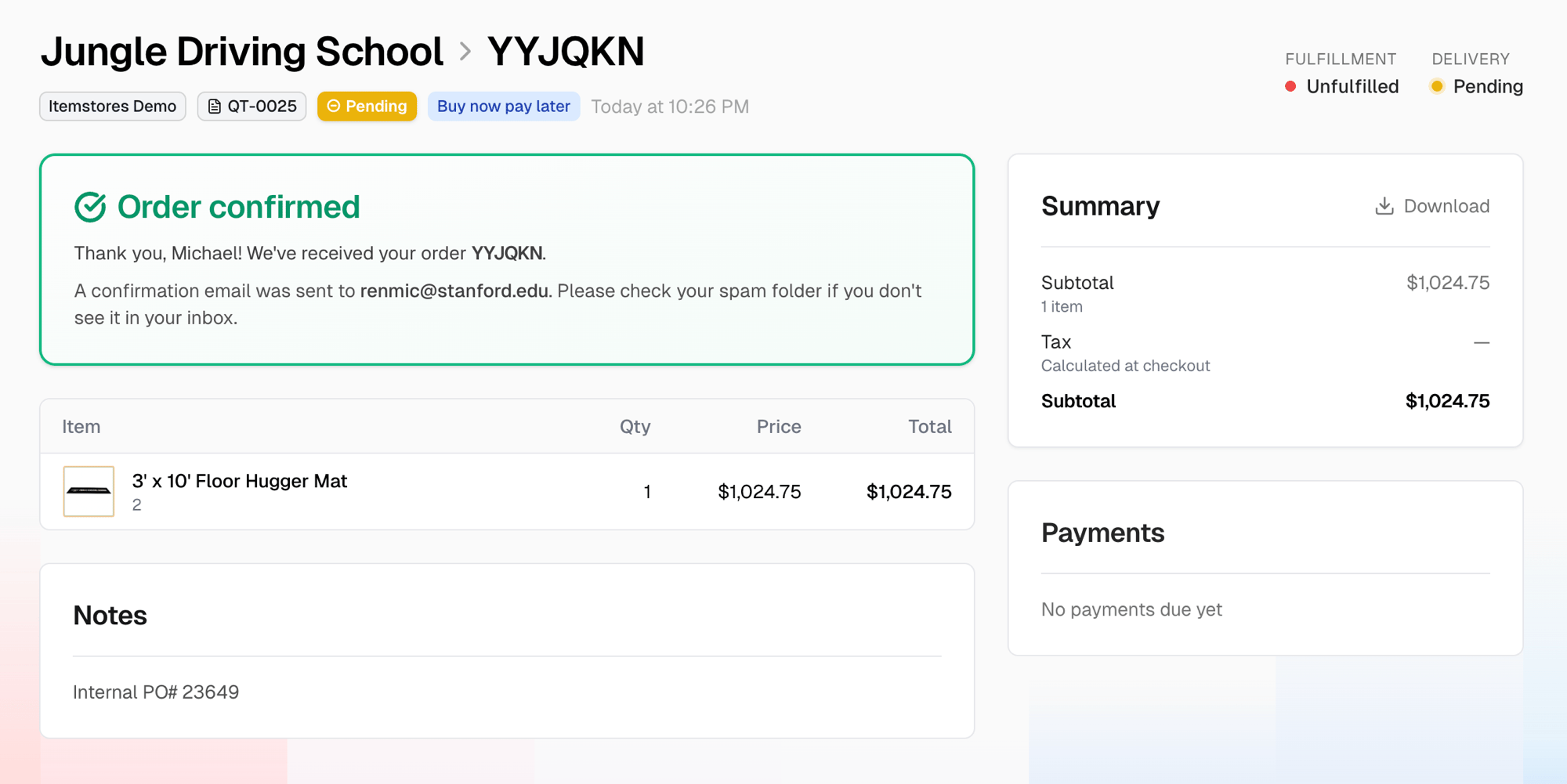
 Placing the order lands the customer on their quote page. It confirms the
order, shows their notes, and offers a download of the summary. **Payments**
reads **No payments due yet** until you request one.
Placing the order lands the customer on their quote page. It confirms the
order, shows their notes, and offers a download of the summary. **Payments**
reads **No payments due yet** until you request one.
 ## 3. What you get
Each pay-later checkout creates two things at once:
| What | Where | State |
| ----------------------------------------------------- | ------------------------------------------- | -------------------------------------------------------------------- |
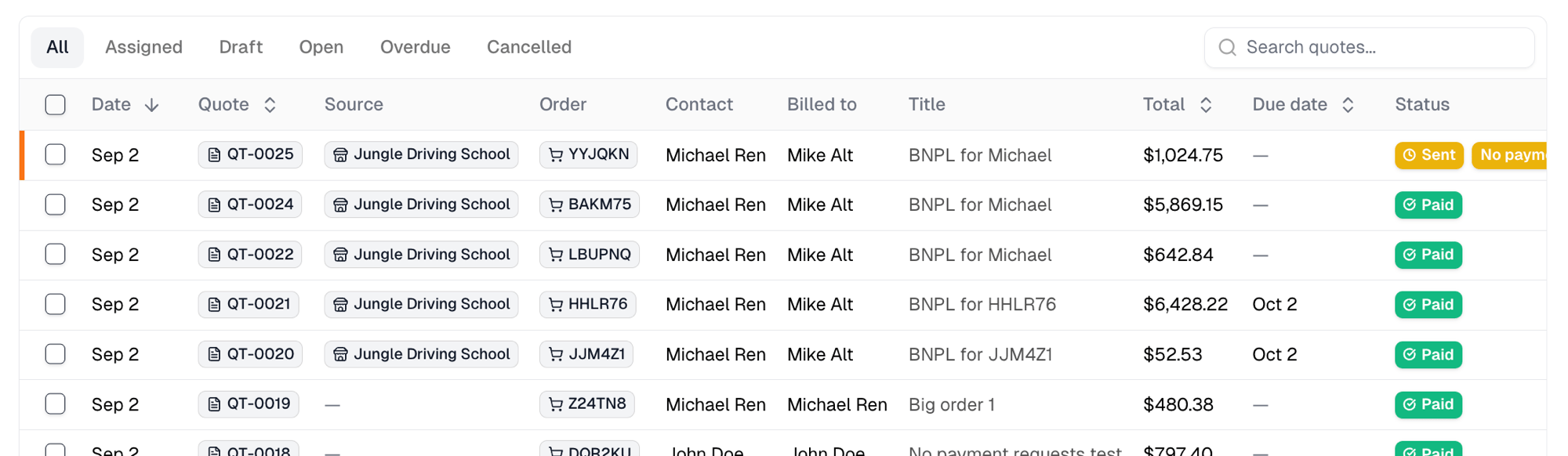
| A quote titled **BNPL for** the customer's first name | [Quotes](https://itemstores.com/app/quotes) | **Sent**, with a **No payment requests** badge until you request one |
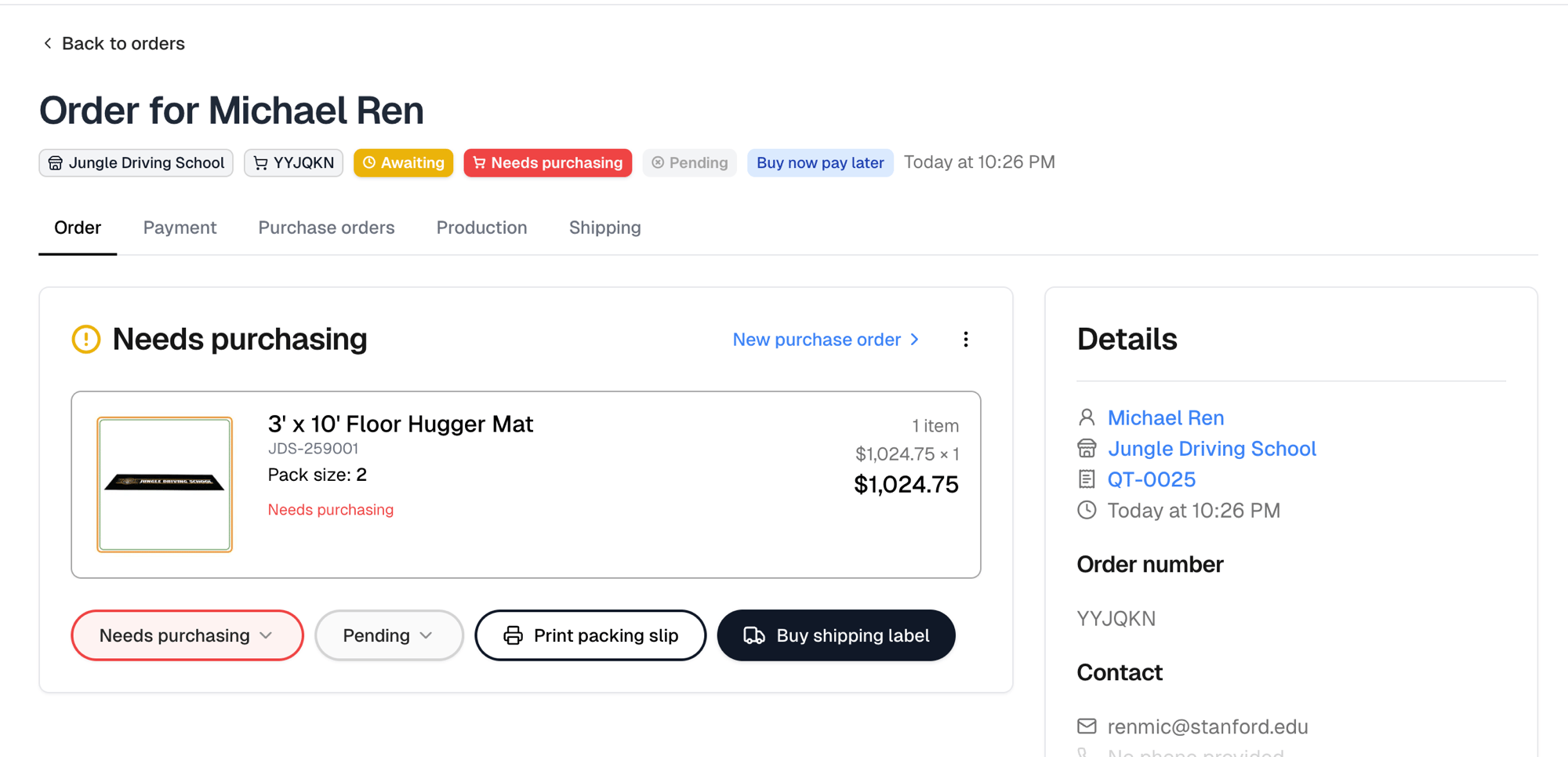
| The order | [Orders](https://itemstores.com/app/orders) | **Awaiting** payment, ready to purchase, produce and ship |
In the quotes list the **Source** column names the store, and **Billed to**
names who will receive payment requests. Both pages carry a
**Buy now pay later** badge, and each links to the other.
## 3. What you get
Each pay-later checkout creates two things at once:
| What | Where | State |
| ----------------------------------------------------- | ------------------------------------------- | -------------------------------------------------------------------- |
| A quote titled **BNPL for** the customer's first name | [Quotes](https://itemstores.com/app/quotes) | **Sent**, with a **No payment requests** badge until you request one |
| The order | [Orders](https://itemstores.com/app/orders) | **Awaiting** payment, ready to purchase, produce and ship |
In the quotes list the **Source** column names the store, and **Billed to**
names who will receive payment requests. Both pages carry a
**Buy now pay later** badge, and each links to the other.
 The order behaves like any other. Fulfill it whenever you choose; nothing waits
for payment.
The order behaves like any other. Fulfill it whenever you choose; nothing waits
for payment.
 ## 4. Request payment
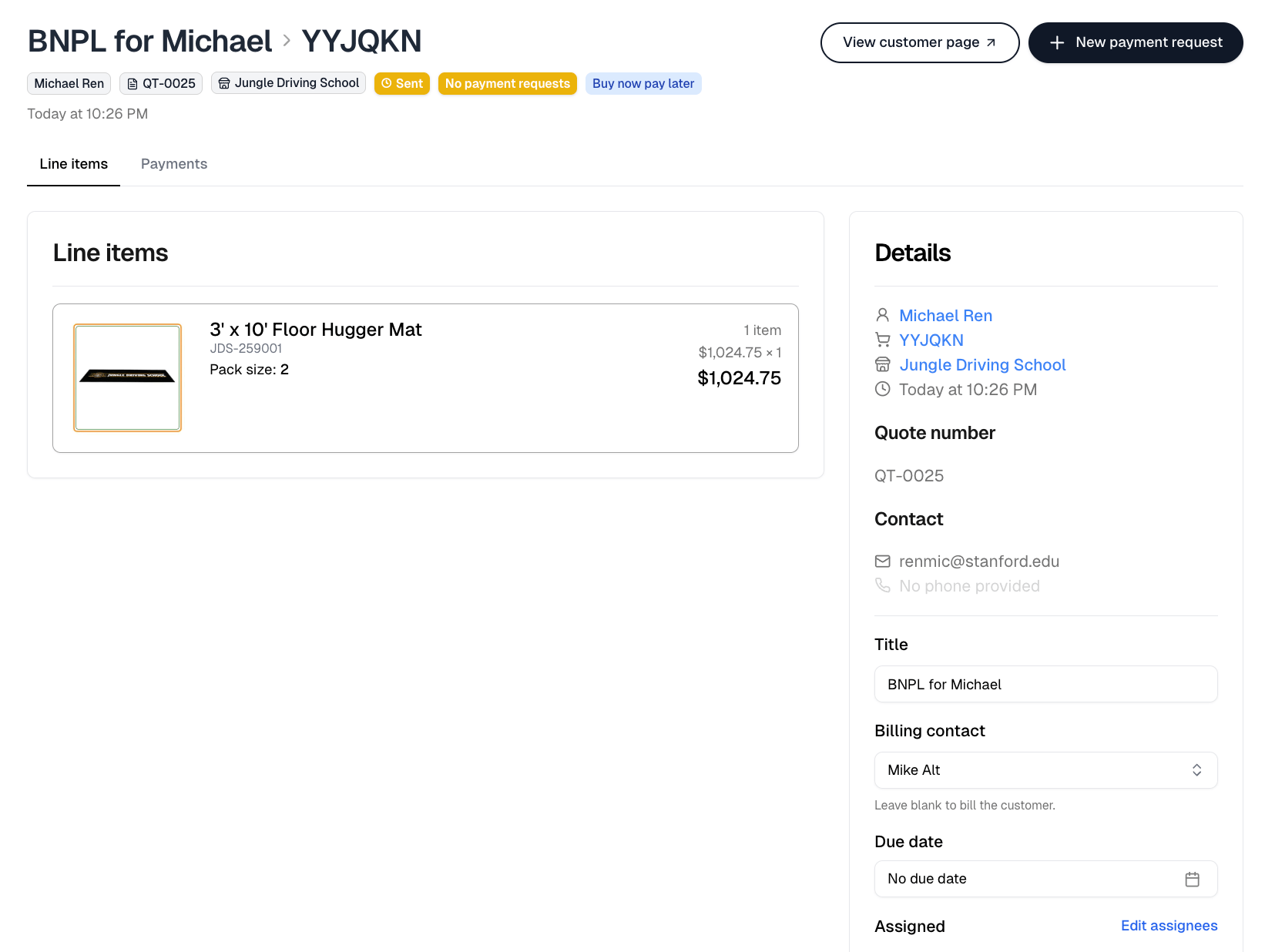
Open the quote. The header shows the customer, the store, and who is billed.
**Billing contact** in the Details card changes the payer for this quote only.
Leave it blank to bill the customer.
## 4. Request payment
Open the quote. The header shows the customer, the store, and who is billed.
**Billing contact** in the Details card changes the payer for this quote only.
Leave it blank to bill the customer.
 Select **New payment request**, then **Card** or **Bank transfer**. The
billing contact receives an email with a link to pay. **Cash or check**
records a payment you already have.
Select **New payment request**, then **Card** or **Bank transfer**. The
billing contact receives an email with a link to pay. **Cash or check**
records a payment you already have.
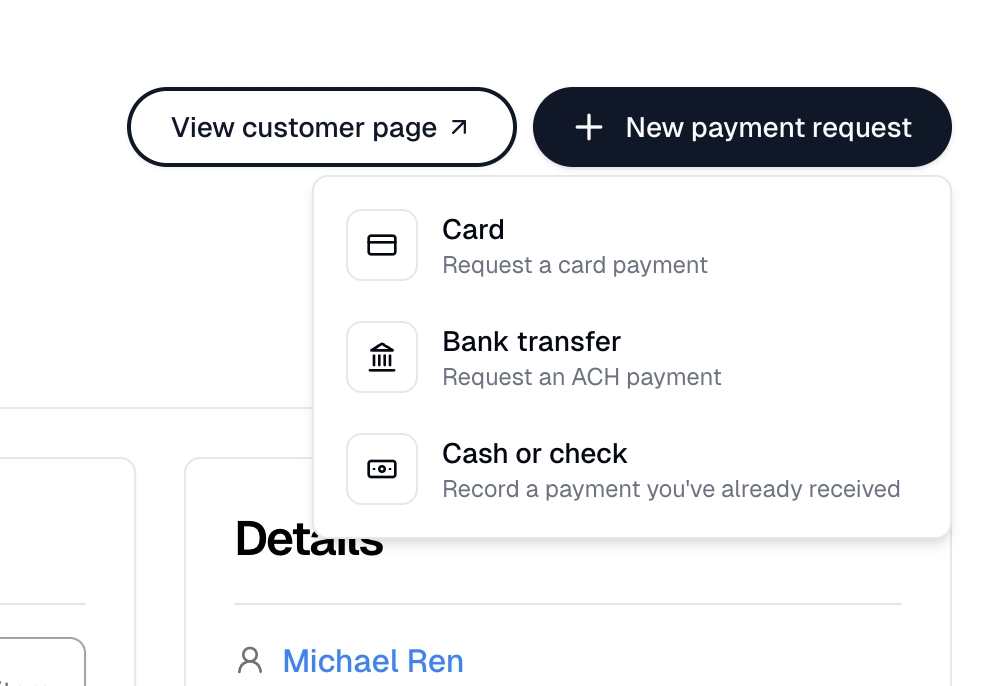 **Bank transfer** is offered to businesses in the United States.
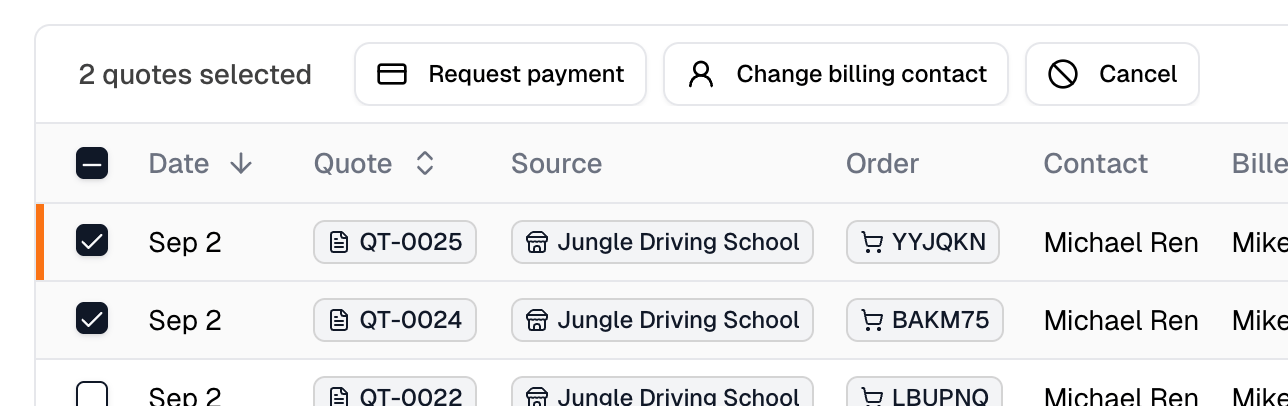
In the quotes list, select the quotes. The toolbar shows
**Request payment**, and **Change billing contact** when a pay-later quote
is selected.
**Bank transfer** is offered to businesses in the United States.
In the quotes list, select the quotes. The toolbar shows
**Request payment**, and **Change billing contact** when a pay-later quote
is selected.
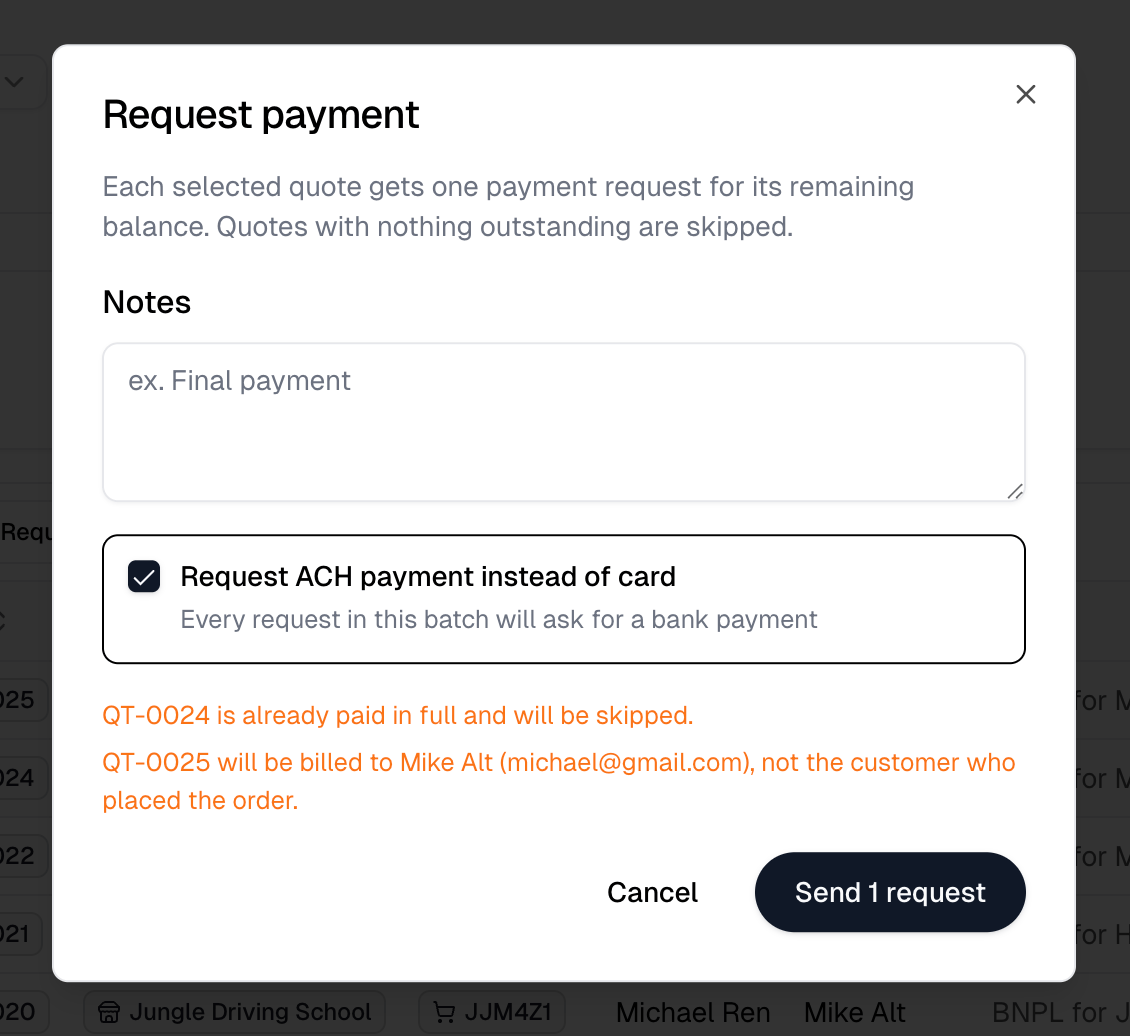
 **Request payment** sends each selected quote one request for whatever it
still owes. Check **Request ACH payment instead of card** to ask for a bank
payment. Quotes already paid in full are skipped, and the dialog says so
before you send.
**Request payment** sends each selected quote one request for whatever it
still owes. Check **Request ACH payment instead of card** to ask for a bank
payment. Quotes already paid in full are skipped, and the dialog says so
before you send.
 When the request is paid, the quote turns **Paid** and the order's payment
status follows. A card payment settles at once. A bank transfer shows
**Processing** for a few business days first.
Refunds for a pay-later order are made from the quote's **Payments** tab.
With QuickBooks connected, the sale posts under the billing contact, not the
customer who checked out.
When the request is paid, the quote turns **Paid** and the order's payment
status follows. A card payment settles at once. A bank transfer shows
**Processing** for a few business days first.
Refunds for a pay-later order are made from the quote's **Payments** tab.
With QuickBooks connected, the sale posts under the billing contact, not the
customer who checked out.