> ## Documentation Index
> Fetch the complete documentation index at: https://itemstores.com/help/llms.txt
> Use this file to discover all available pages before exploring further.
# Quotes
> Priced documents customers pay
A quote is a pricing document a customer pays. A [proposal](/help/knowledge-base/proposals)
comes earlier and is for design review, before pricing is set.
## Building a quote
**New quote** needs a **Contact**, a **Title**, and at least one product line. A
due date and notes are optional, and you are assigned to it by default.
### Line items
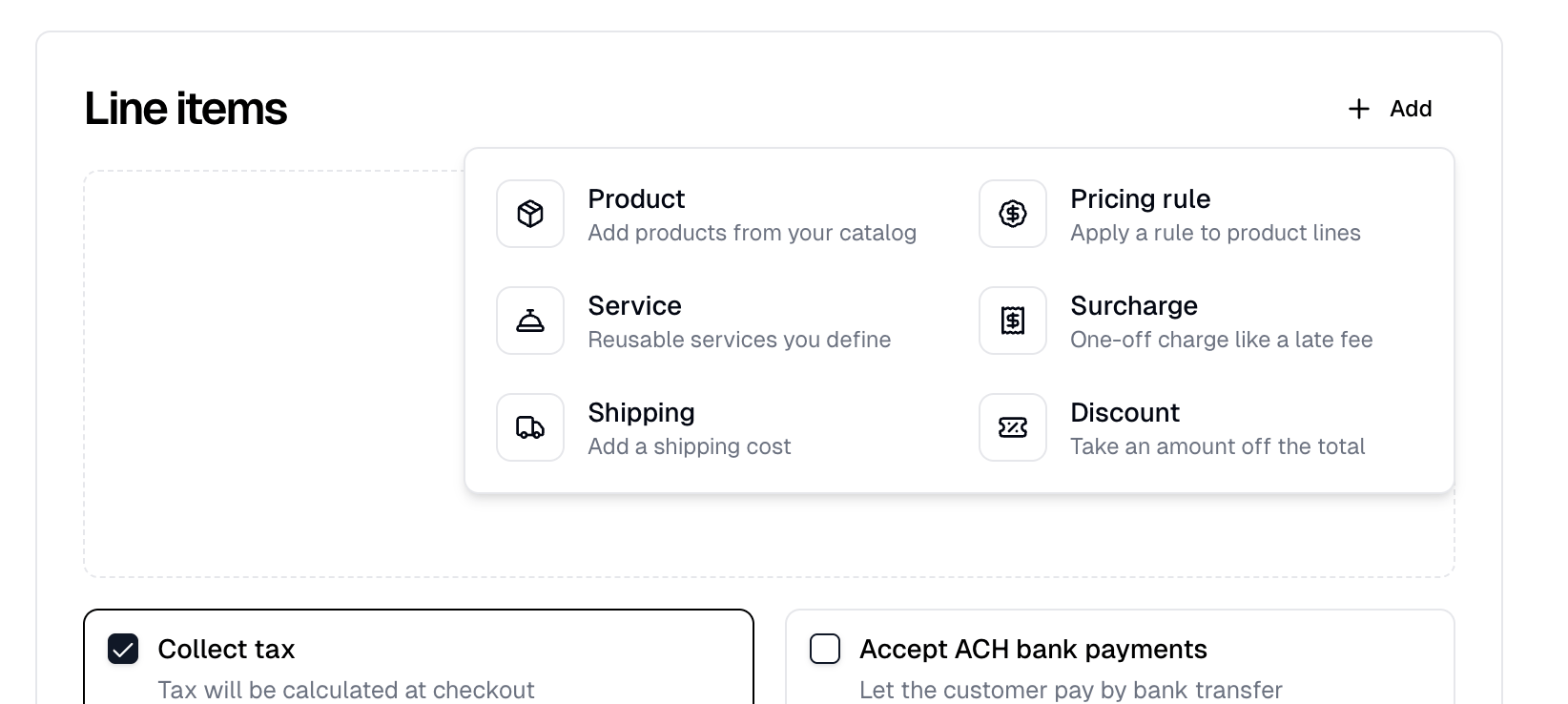
**Add** offers six kinds of line:
| Line | What it is |
| ------------ | -------------------------------------------------------------- |
| Product | Add products from your catalog |
| Pricing rule | Apply a [rule](/help/knowledge-base/pricing-rules) to product lines |
| Service | Reusable services you define |
| Surcharge | One-off charge like a late fee |
| Shipping | Add a shipping cost |
| Discount | Take an amount off the total |
Every line has a quantity and a price you can edit, so the quote is never locked
to catalog pricing.
 ### Adding products
Choose from **Blanks** or **Decorated products**, then pick quantities in a grid
of colors against sizes. A discontinued blank cannot be picked at all.
Where the supplier publishes stock it is shown under each quantity, and sizes
the supplier is out of are disabled. Everything else can be oversold, since your
own inventory never caps a quote.
### Applying artwork
There is no button for this. The **Apply artwork** dialog opens on its own when
you add a blank, and again if you add artwork under **Artwork** while a blank is
on the quote. Selecting an artwork already listed there reopens it for the
products the quote already holds.
Applying artwork swaps the blank's lines for a decorated product and reprices
them from it.
A Fulfill Engine blank cannot be quoted undecorated. Its lines are held back
until artwork is applied, and dismissing the dialog discards them.
### Applying a pricing rule
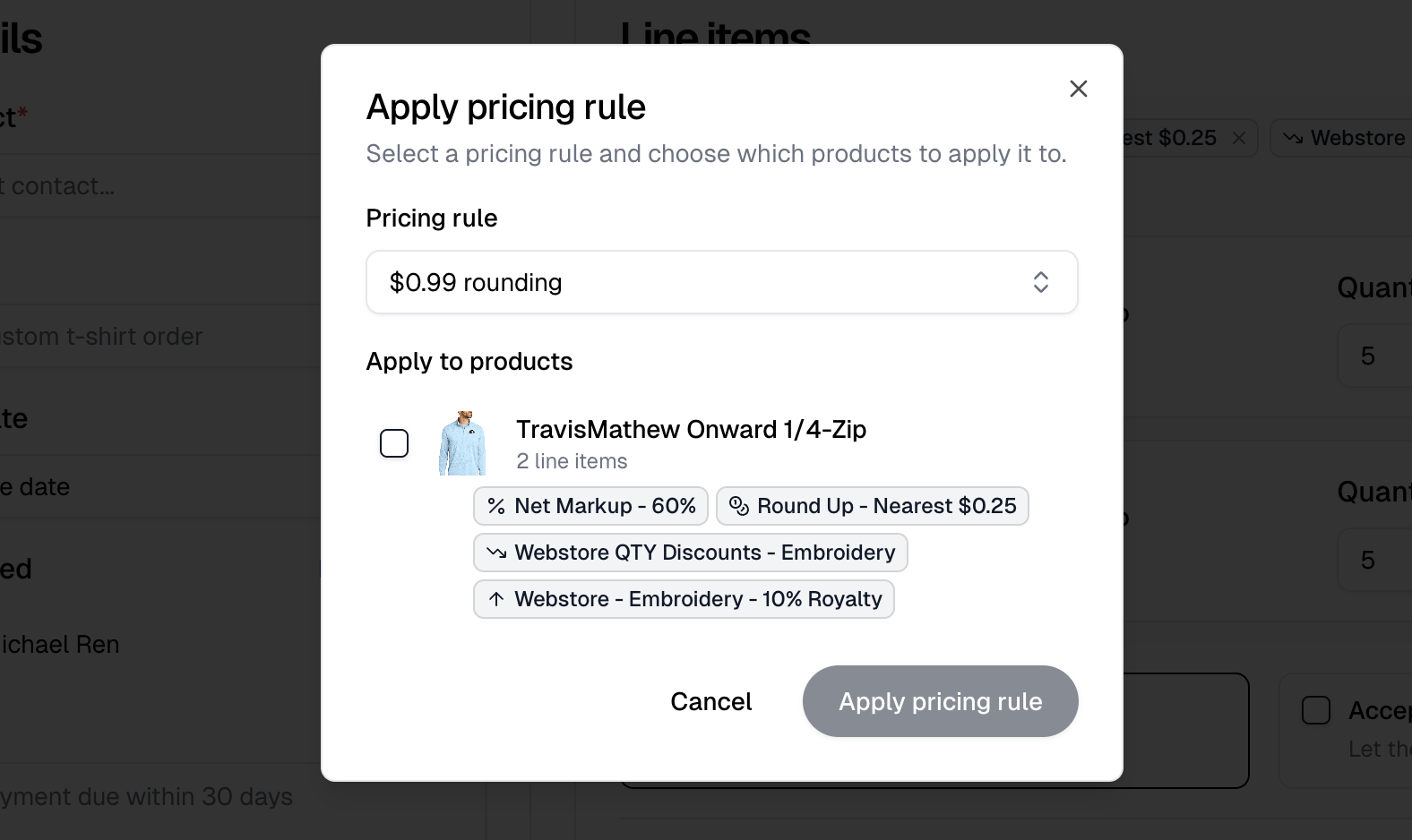
**Pricing rule** asks which rule and which products to apply it to, so a volume
discount can cover every product on the quote or only some.
Each product is listed with how many lines it covers and the rules already on
it, so you can see what you are stacking onto.
### Adding products
Choose from **Blanks** or **Decorated products**, then pick quantities in a grid
of colors against sizes. A discontinued blank cannot be picked at all.
Where the supplier publishes stock it is shown under each quantity, and sizes
the supplier is out of are disabled. Everything else can be oversold, since your
own inventory never caps a quote.
### Applying artwork
There is no button for this. The **Apply artwork** dialog opens on its own when
you add a blank, and again if you add artwork under **Artwork** while a blank is
on the quote. Selecting an artwork already listed there reopens it for the
products the quote already holds.
Applying artwork swaps the blank's lines for a decorated product and reprices
them from it.
A Fulfill Engine blank cannot be quoted undecorated. Its lines are held back
until artwork is applied, and dismissing the dialog discards them.
### Applying a pricing rule
**Pricing rule** asks which rule and which products to apply it to, so a volume
discount can cover every product on the quote or only some.
Each product is listed with how many lines it covers and the rules already on
it, so you can see what you are stacking onto.
 ### Tax
**Collect tax** calculates tax at checkout and is on by default.
A quote that ships, either through a shipping line or a Fulfill Engine product,
needs a shipping address on the contact. Without one the quote will not save.
## Sending it
The footer offers **Save as draft** and **Create quote**. Save as draft saves
the quote without sending anything; send it later with **Send quote** on the
quote itself.
### Tax
**Collect tax** calculates tax at checkout and is on by default.
A quote that ships, either through a shipping line or a Fulfill Engine product,
needs a shipping address on the contact. Without one the quote will not save.
## Sending it
The footer offers **Save as draft** and **Create quote**. Save as draft saves
the quote without sending anything; send it later with **Send quote** on the
quote itself.
 **Create quote** opens a dialog with **Send quote to customer** checked, and
beneath it a choice of payment request for the full amount: **Request card
payment**, checked by default, or **Request ACH payment**. Checking one clears
the other, and both can be off to send the quote with no request. The request
options show only while Send quote to customer is checked.
**Create quote** opens a dialog with **Send quote to customer** checked, and
beneath it a choice of payment request for the full amount: **Request card
payment**, checked by default, or **Request ACH payment**. Checking one clears
the other, and both can be off to send the quote with no request. The request
options show only while Send quote to customer is checked.
 The ACH option is offered to businesses in the United States.
A quote can only be edited while it is a draft. Once it is sent, **Edit quote**
is gone and a change means building a new quote.
## After sending
A quote has two tabs, **Line items** and **Payments**, and opens on Line items.
**View customer page** shows exactly what the customer sees: the items, any
attachments, a downloadable summary, and **Make a payment**.
**New payment request** opens a menu offering **Card**, **Bank transfer**, and
**Cash or check**. Card and Bank transfer send the payer a payment request.
Cash or check records one you already took. This is how you take a deposit and
the balance separately. The button is there while the quote is sent or
partially paid, and greys out when nothing is left to pay. Bank transfer is
offered to businesses in the United States.
A sent quote with no request yet carries a **No payment requests** badge.
A quote that came from a [buy now pay later store](/help/tutorials/set-up-a-pay-later-store)
carries the store's badge and a **Billing contact** field in the Details card.
Payment requests go to that contact; leave it blank to bill the customer.
### Payments
The **Payments** tab's **Payment requests** card lists each payment with its
method and status. Opening one
shows the total, your revenue, the fees, and the net you keep. A paid payment
can be refunded there with **Refund**, and a request nobody has paid yet can be
removed with **Delete**.
## Converting to an order
**Convert to order** turns the quote into an [order](/help/knowledge-base/orders) you can
fulfill. It does not wait for payment. The order is marked awaiting payment and
can be worked on right away. The button appears once the quote is sent, stays
until the quote has an order, and never shows on a cancelled quote.
If the quote contains Fulfill Engine products, converting submits them to
Fulfill Engine for production **immediately**. Itemstores warns you before it
does.
## The list
**Show stats for** sets the window for four cards: **Draft**, **Open**,
**Total value** and **Paid**. Filter by **All**, **Draft**, **Open**,
**Overdue** or **Cancelled**. **Assigned** joins them once a quote is assigned
to you.
**Source** names the proposal or store a quote came from. **Billed to** shows
when any quote on the page is billed to someone other than its contact.
Selecting rows hides the filters and reveals a toolbar with **Request payment**
and **Cancel**, or **Reopen** when you are on the Cancelled tab. **Change
billing contact** joins them when a pay-later quote is selected.
**Request payment** sends each selected quote one request for whatever it still
owes, by card or, with **Request ACH payment instead of card** checked, by bank
transfer. Quotes already paid in full are skipped, and the dialog lists them
before you send.
Each row links a quote to the proposal or store it came from and the order it
became, so you can follow one job across all of them.
The ACH option is offered to businesses in the United States.
A quote can only be edited while it is a draft. Once it is sent, **Edit quote**
is gone and a change means building a new quote.
## After sending
A quote has two tabs, **Line items** and **Payments**, and opens on Line items.
**View customer page** shows exactly what the customer sees: the items, any
attachments, a downloadable summary, and **Make a payment**.
**New payment request** opens a menu offering **Card**, **Bank transfer**, and
**Cash or check**. Card and Bank transfer send the payer a payment request.
Cash or check records one you already took. This is how you take a deposit and
the balance separately. The button is there while the quote is sent or
partially paid, and greys out when nothing is left to pay. Bank transfer is
offered to businesses in the United States.
A sent quote with no request yet carries a **No payment requests** badge.
A quote that came from a [buy now pay later store](/help/tutorials/set-up-a-pay-later-store)
carries the store's badge and a **Billing contact** field in the Details card.
Payment requests go to that contact; leave it blank to bill the customer.
### Payments
The **Payments** tab's **Payment requests** card lists each payment with its
method and status. Opening one
shows the total, your revenue, the fees, and the net you keep. A paid payment
can be refunded there with **Refund**, and a request nobody has paid yet can be
removed with **Delete**.
## Converting to an order
**Convert to order** turns the quote into an [order](/help/knowledge-base/orders) you can
fulfill. It does not wait for payment. The order is marked awaiting payment and
can be worked on right away. The button appears once the quote is sent, stays
until the quote has an order, and never shows on a cancelled quote.
If the quote contains Fulfill Engine products, converting submits them to
Fulfill Engine for production **immediately**. Itemstores warns you before it
does.
## The list
**Show stats for** sets the window for four cards: **Draft**, **Open**,
**Total value** and **Paid**. Filter by **All**, **Draft**, **Open**,
**Overdue** or **Cancelled**. **Assigned** joins them once a quote is assigned
to you.
**Source** names the proposal or store a quote came from. **Billed to** shows
when any quote on the page is billed to someone other than its contact.
Selecting rows hides the filters and reveals a toolbar with **Request payment**
and **Cancel**, or **Reopen** when you are on the Cancelled tab. **Change
billing contact** joins them when a pay-later quote is selected.
**Request payment** sends each selected quote one request for whatever it still
owes, by card or, with **Request ACH payment instead of card** checked, by bank
transfer. Quotes already paid in full are skipped, and the dialog lists them
before you send.
Each row links a quote to the proposal or store it came from and the order it
became, so you can follow one job across all of them.